How to take automated screenshots of AirNow air quality widget readings

Learn how to capture automatic screenshots of AirNow's current air quality score for your location with PagePixels.

Introduction

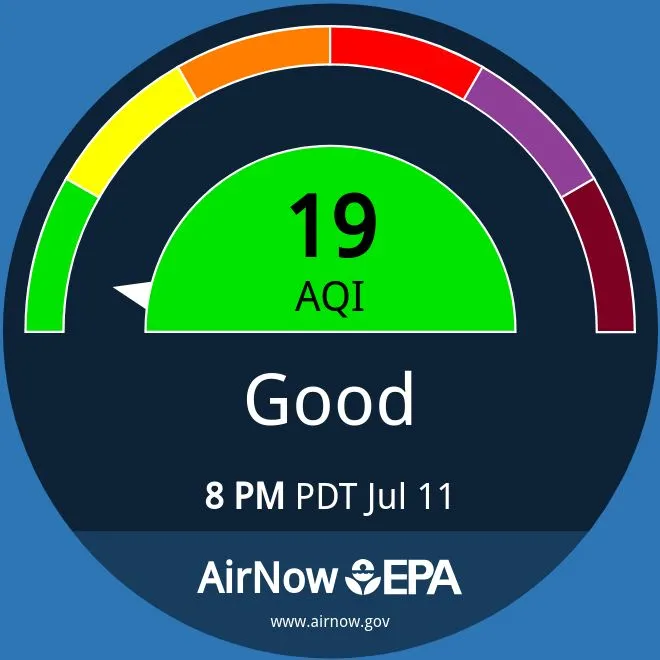
PagePixels is a screenshot automation tool that you can use to take scheduled screenshots of web pages, including the latest AirNow air quality widget information.

PagePixels is free to start, and this tutorial demonstrates how to capture an AirNow air quality widget on a daily schedule.

Example
Prerequisites

Before you start, you'll need:

  • A PagePixels account.
  • A link to an AirNow air quality widget for the location that interests you.
    • For example, the following link shows the air quality reading for Sausalito, California, USA:
      https://widget.airnow.gov/aq-dial-widget-signage/?city=Sausalito&state=CA&country=USA
    • For more information about AirNow widgets, including different display options, see this AirNow reference page.

How to automate taking screenshots of AirNow air quality readings

To capture automatic screenshots of an AirNow air quality widget:

1

Create a screenshot

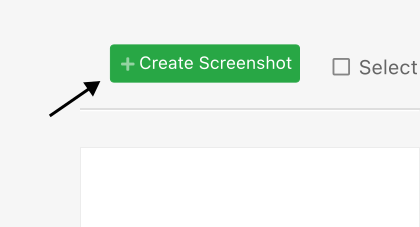
Log in to your PagePixels account, and click the +Create Screenshot button.

2

Set your schedule

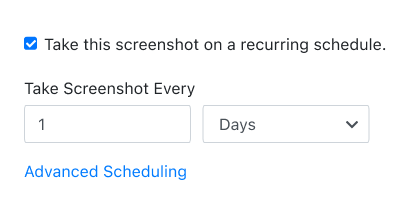
By default, scheduled screenshots are taken every 5 minutes.

For a daily screenshot, update the fields to: 1 Days

3

Add URL

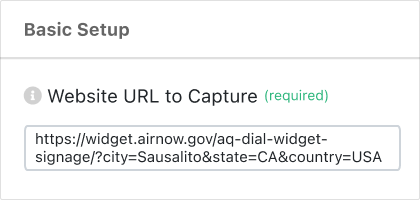
Copy and paste the link to your AirNow air quality widget page into the Website URL to Capture field.

For example:

https://widget.airnow.gov/aq-dial-widget-signage/?city=Sausalito&state=CA&country=USA
4

Set website time zone

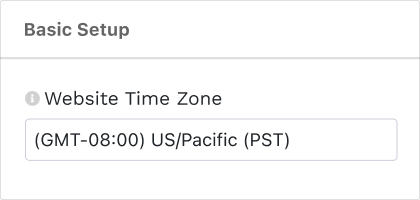
To ensure the AirNow widget page works as expected, set the Website Timezone field to match the location.

For example, for Sausalito, California, USA, the time zone selection would be:

US/Pacific (PST)
5

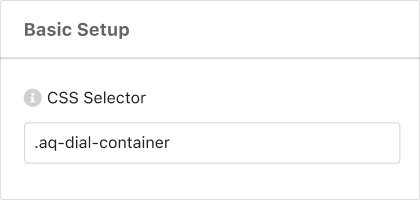
Add CSS Selector

PagePixels CSS Selector option helps you capture a specific element on a web page.

In this case - to screenshot only the widget on the AirNow page, you can use the CSS Selector:

.aq-dial-container
6

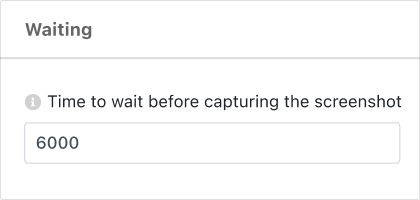
Increase Wait Time

Scroll to the Waiting section.

Change the Time to wait value from 1500 (default) to: 6000

7

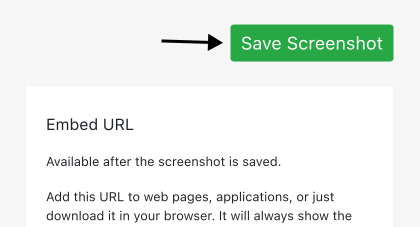
Save Screenshot

Click the green Save Screenshot button (top-right).

Your AirNow screenshot automation is officially set, and your first air quality screenshot will be taken shortly.

What else can PagePixels do?

When you automate screenshots with PagePixels, you can also:

  • Schedule screenshots by time interval, days of the week, time of day, and time zone using PagePixels' built-in scheduling system.
  • Run a series of user browser actions on a web page before taking a screenshot, such as filling out a form and clicking buttons, with Multi-Step Screenshot functionality.
  • Send scheduled screenshots to a public or private Slack channel, a Custom Webhook address, or save your screenshot images to your Dropbox account.
  • Connect PagePixels to no-code integration platforms Zapier, Make, n8n, or Power Automate to automatically send, save, and email screenshots to thousands of services.
  • Take and have AI process your screenshot images with the AI Analysis Screenshot feature.
  • Compare and contrast multiple screenshots and other images with AI using the Multiple Image AI Analysis feature.
  • Capture screenshots from different locations around the world with PagePixels' Real Location Screenshots feature.
  • Convert data from third-party APIs, HTML emails, and other HTML content into screenshots using the Custom HTML Screenshots feature.
  • Take automatic screenshots of an entire web page with the Full Page option.
  • Capture screenshots of only a specific element on a web page with CSS Selector Screenshot capabilities.
  • Quickly add advanced screenshot tools to your AI assistant by connecting the PagePixels Screenshot MCP Server.
  • Use the PagePixels Screenshot API to integrate screenshot automation into your web applications.
  • Automate structured data extraction and AI-powered text analysis for your marketing, sales, and lead generation needs with PagePixels' Domain Research feature.

Check out our features page to discover even more things you can do with PagePixels.

Support

Questions? Contact us anytime by email:

support-tickets@pagepixels.com

Or send us a message through our Support page.